
 Mia Hartley
You take a screenshot of a conversation, drag a blur over the phone number, and send it. Two seconds of work, problem solved.
Except the blur did not delete anything. It rearranged pixels that are still, mathematically, the pixels of your phone number. Depending on how light you went, someone can put them back.
This is not a theoretical worry dressed up as advice. It is the single most common way people leak their own data while trying to protect it, and the fix takes no longer than the mistake.
A blur is a filter, not an eraser
Gaussian blur spreads each pixel into its neighbours according to a fixed rule. Pixelation averages blocks of pixels into one value. Both are transformations, and a transformation keeps information: it just spreads it out or coarsens it.
That matters most for exactly the kind of thing you want to hide. A card number, a verification code, an IBAN, a licence plate: short strings, from a tiny alphabet, in a font the attacker can guess, on a background they can reproduce. That is a search problem with a small answer space, not a cryptographic one.
Researchers have built the tools to prove it. Depix reconstructs pixelated text from screenshots when the font and rendering are known, by testing which characters, once pixelated the same way, produce the blocks you see. Unredacter, from Bishop Fox, pushed the same idea further and defeated pixelation that people considered safe.
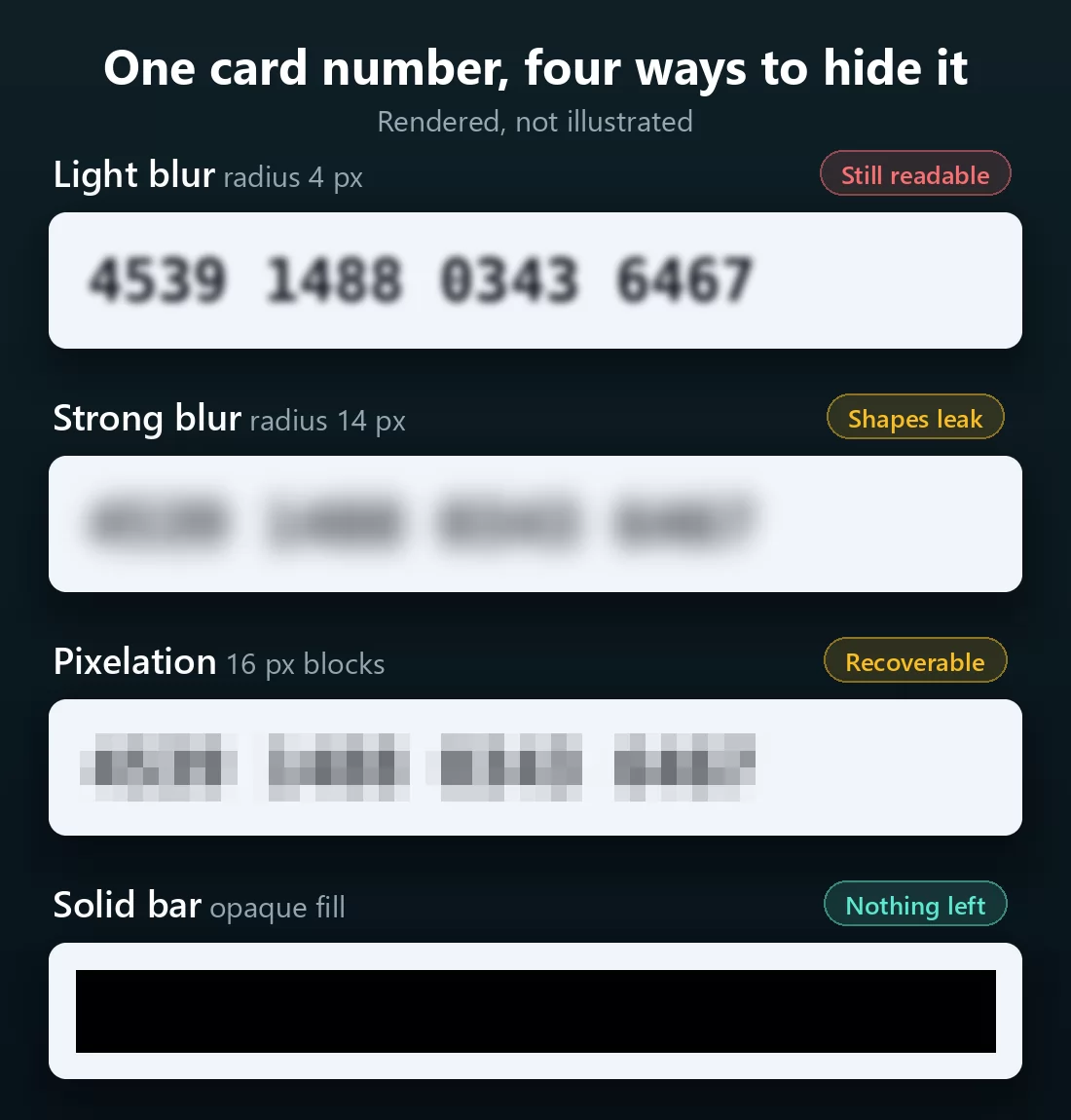
Those attacks are not magic. They need favourable conditions: a known font, a flat background, a blur or block size that is not too aggressive. That is the honest version. But look at the first row above. That is a real Gaussian blur at radius 4, and you can simply read it. No tool required, no research, no attacker. Most blurs people apply in a hurry look like that one, not like the fourth row.
What actually hides text
The rule is short: the masking has to destroy the information, not scramble it.
- An opaque fill is the safe default. A solid black, white or coloured bar over the area. There is nothing underneath to recover because the pixels were replaced, not shifted. Flattened into a raster image, it is final.
- Blur can work, but only when it is heavy. If any letter shape survives, it is not heavy enough. If you can still tell where the words end, go stronger.
- Pixelation needs blocks far larger than a character. Blocks the size of a letter turn each letter into a signature. Blocks the size of a whole word destroy the signal.
- Never trust a semi-transparent mask. Anything you can partly see through has, by definition, kept what is behind it.
The practical version: if you can still see any structure in the masked area, so can everyone else.
The four leaks that survive a perfect mask
Getting the mask right is only half of it. These are the ways a properly redacted image still gives you away.
The original is still in your gallery. Most editors save a copy. You mask the screenshot, then share the wrong file from the recents strip. Rename the safe version, or delete the source once you are done.
The mask is still a movable object. In a PDF, a slide deck, a document or a design file, a black rectangle drawn on top is a separate layer. Whoever receives it can select it and drag it aside. Only a flattened raster image, exported as PNG or JPEG, is actually redacted.
The metadata travels with the file. EXIF data carries GPS coordinates, the device model, the exact timestamp. You blurred the address in the picture and shipped the coordinates in the header.
You missed something. The notification bar at the top, a browser autocomplete dropdown, tab titles, a reflection, an order number, the contact photo. The eye reads the message and skips the frame around it.
Check the exported file, not the screen
Here is the step almost nobody takes, and it is the one that decides whether any of the above worked.
What you looked at while editing was a preview, scaled down to your screen. The file you send is full resolution. A blur that looked opaque at 30 percent zoom can be perfectly legible at 100 percent.
So before sending: open the exported file, zoom all the way in on each masked area, and try to read it. If you can make out a shape, redo it. That is the manual version and it costs you fifteen seconds.
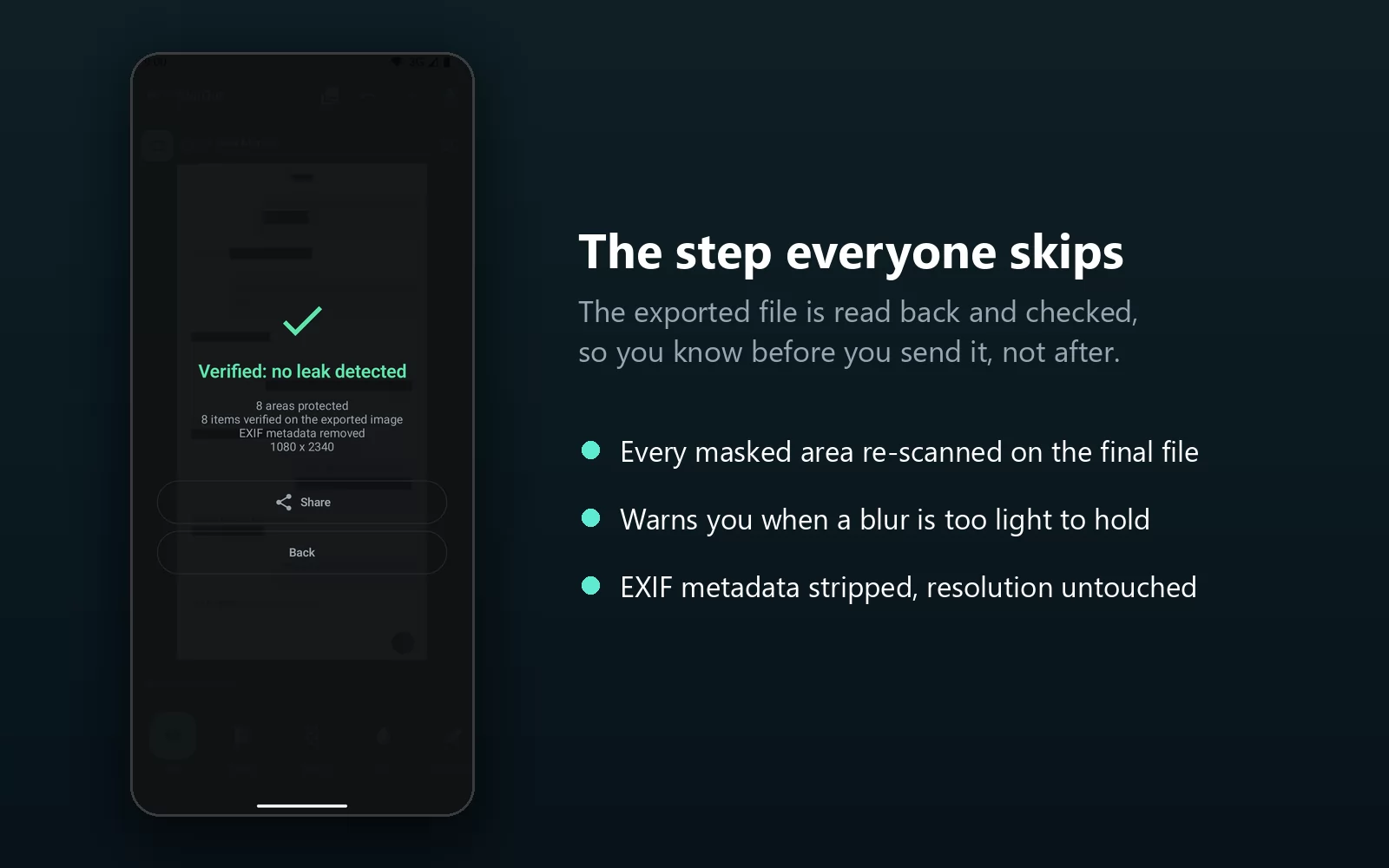
The automatic version exists too. BlurOut, a free Android app for blurring text in screenshots, runs text recognition again on the file it just wrote, and tells you whether anything sensitive is still readable in it. It also warns you while you edit when a blur or pixel setting is too light to hold, and strips EXIF on the way out. It is the only app I know of that checks its own work rather than assuming it succeeded.
Doing it on Android
Android has no system-wide redaction tool, so your options split three ways.
Google Photos Markup is already on your phone. Open the image, tap Edit, then Markup, and draw over the area with the pen. There is no blur and no pixelate: you are painting an opaque line, which as it happens is the safest option anyway. It is fine for one or two spots, tedious for a chat screenshot, and it gives you no zoom to check your work.
Samsung's built-in editor has a mosaic pen with a few pixel patterns. Convenient, but it is pixelation, so keep the blocks coarse and never use the lightest setting.
A dedicated app is what you want the moment there is more than a couple of things to hide, or the moment the stakes are higher than a group chat.
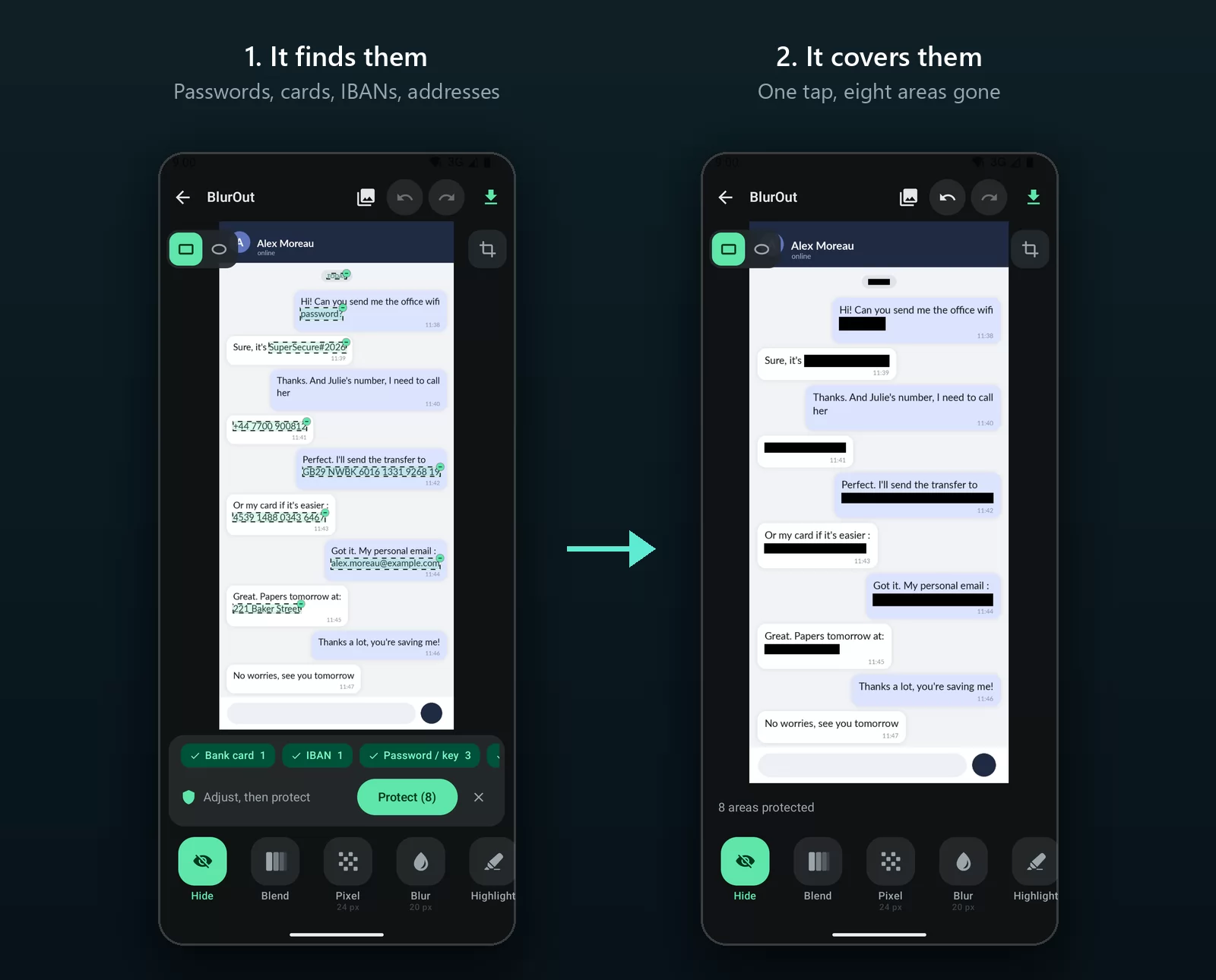
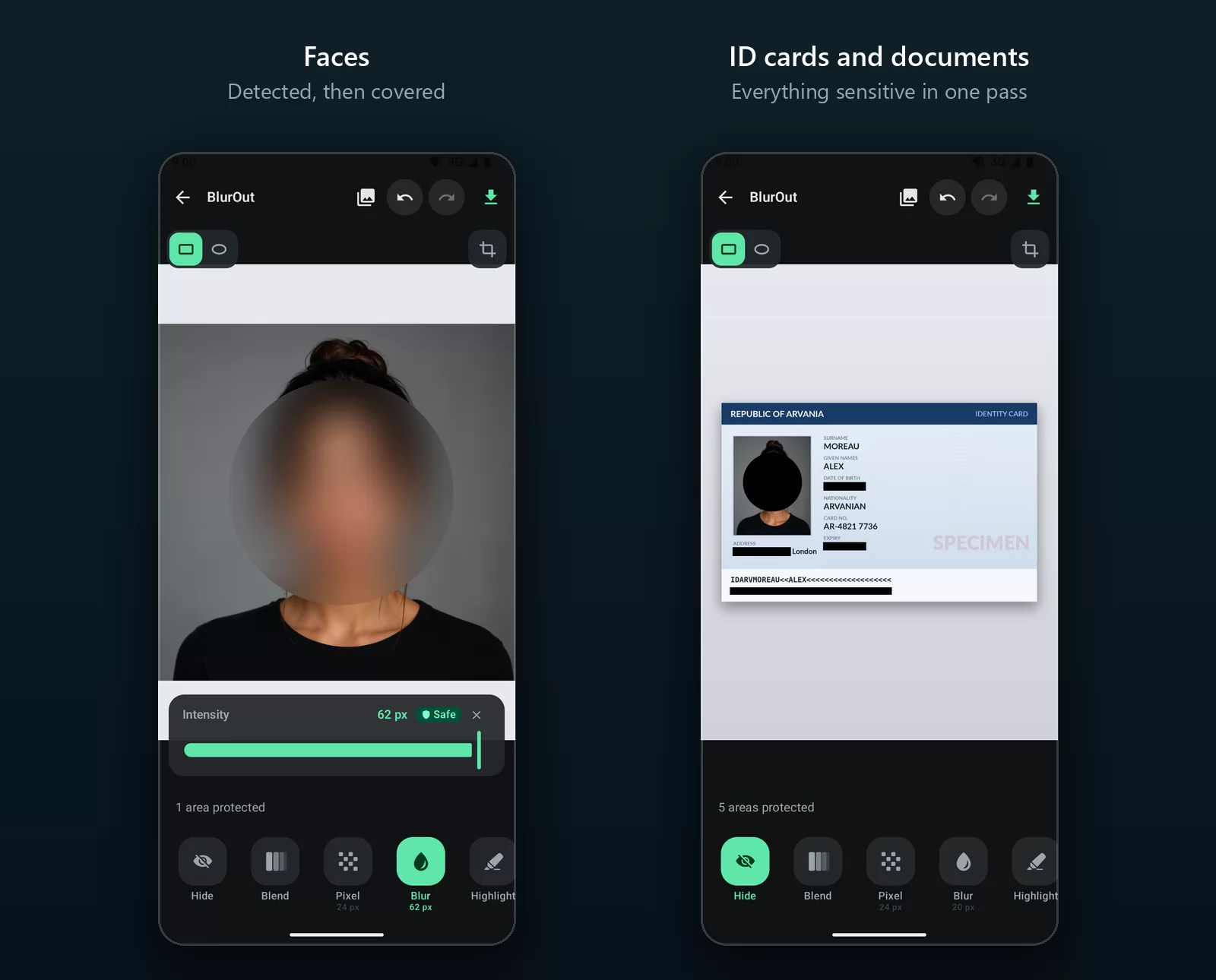
That last panel is BlurOut doing the finding for you. It reads the image and flags the patterns worth hiding: card numbers, IBANs, passwords and keys, verification codes, phone numbers, emails, postal addresses. You adjust what it proposes, tap once, and every area is covered. Faces are detected too.
The parts that matter beyond convenience: it has no internet permission at all, so nothing can leave the phone even in principle, and you can verify that on its Play listing. The export keeps the original resolution and format, and every pixel outside a masked area is identical to the source, which is where most blur apps quietly fall down by re-encoding your PNG into a smaller JPEG.
What to hide before you share
Run down this list. It takes ten seconds and it catches almost everything.
- Money: card numbers, IBANs, account and sort codes, balances, the cardholder name
- Identity: full name, date of birth, postal address, ID and passport numbers, the machine-readable strip at the bottom of a document
- Access: passwords, API keys and tokens, one-time codes, recovery phrases, QR codes (a QR code is data, and a blur that leaves it scannable hides nothing)
- Contact: phone numbers, personal email addresses, usernames of people who did not ask to be in your screenshot
- In photos: faces, licence plates, house numbers, name badges, screens visible in the background
- Around the edges: notification bar, browser tabs, autocomplete suggestions, file paths, order and tracking numbers
On a computer
Same rules, different tools. Preview on macOS and Paint on Windows will both draw an opaque shape, then you flatten by exporting to PNG. Anything that keeps layers, including PDF annotation tools, is not redaction until you export.
If you would rather not install anything, you can censor an image online with blur, pixelation or a solid fill, straight in the browser and without uploading the file anywhere. It downloads at the original resolution, which is the other half of the problem solved.
Frequently asked questions
Can blurred text really be recovered? Under the right conditions, yes. Light blurs are often simply readable as they are, and tools like Depix and Unredacter have reconstructed pixelated text when the font and background could be reproduced. Heavy blur over a busy background is much harder to attack, but an opaque bar is the only one that is unconditionally safe.
Is pixelation safer than blur? Not inherently. Both keep information. What matters is the strength: pixel blocks smaller than a character are easy to attack, blocks larger than a word are not.
Does a black bar leak anything? Not once the image is flattened. The catch is that in PDFs, documents and design files the bar is an object sitting on top of readable text. Export to PNG or JPEG and it becomes permanent.
Do I need to remove EXIF data too? If the image is a photo, yes. It can contain GPS coordinates and your device model. Screenshots usually carry less, but stripping it costs nothing.
What is the fastest safe method on a phone? Cover the areas with an opaque fill, export, then reopen the exported file and zoom in on each area to confirm. An app that re-scans the export does that last step for you.
Does hiding text ruin image quality? It should not. A good tool changes only the masked pixels and leaves resolution and format alone. If your screenshot comes back smaller or converted to JPEG, the tool is re-encoding the whole image and you should use a different one.
The short version
Blur hides text from a glance, not from an attacker. Use an opaque fill when it actually matters, keep blur and pixelation strong enough that no shape survives, flatten the result, and then check the file you are about to send rather than the preview you were looking at.
That last check is the one that turns a habit into a guarantee.
👉 Get BlurOut on Google Play. It finds what is sensitive, hides it for good, and reads the exported image back to prove it. Free, no watermark, no internet permission.