
 Mia Hartley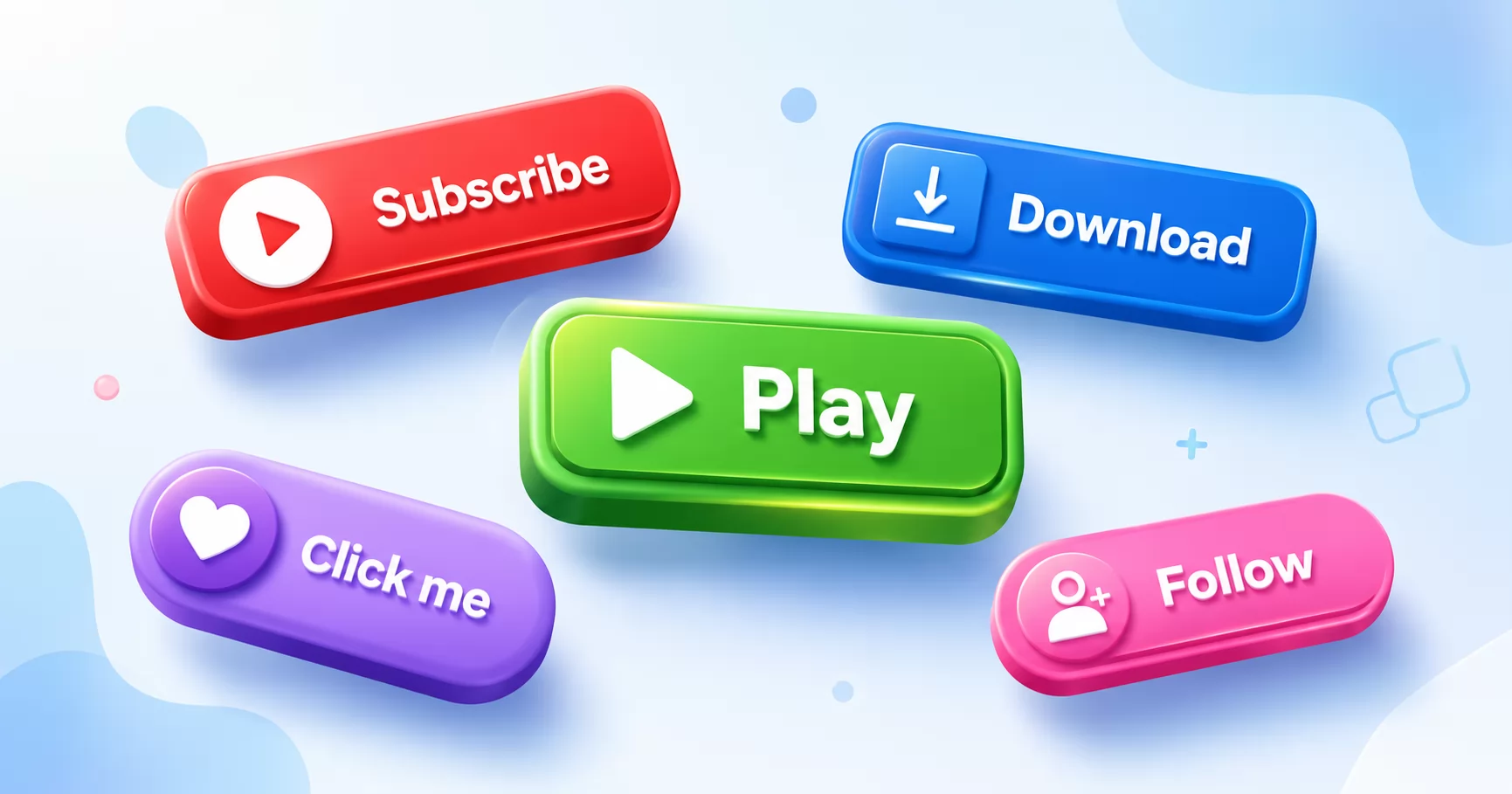
Search for a "button generator" and almost everything you find spits out CSS code for developers. That is great if you are building a website and know where to paste it. But what if you just want a good-looking button as an image? A subscribe button for a video thumbnail, a call-to-action for an email, a shiny "Play" button for a game, or a download button for your store page?
That is exactly what the Button Generator is for. It is a free online tool that lets you design a button visually, with real depth and polish, then download it as a ready-to-use image. No code, no CSS, no sign-up.
Image buttons, not code
This is the key difference, so it is worth being clear about it. Most button generators produce HTML and CSS. The TextStudio Button Generator produces an image: a crisp PNG with a transparent background, or an animated GIF, APNG or WEBM if you want your button to move.
That makes it perfect for the many places where you cannot (or do not want to) write code:
- YouTube and Twitch thumbnails, intros and overlays
- Email newsletters, where a button image is often the only reliable option
- Game and app interfaces
- Marketplace and store listings
- Social media posts and banners
Because the output is a real image, you keep full creative control: 3D bevels, gradients, glows, shadows and icons that a plain CSS button rarely gives you.
Designing your button
Everything starts in the Design tab, split into three simple sub-tabs: Text, Style and Icon.
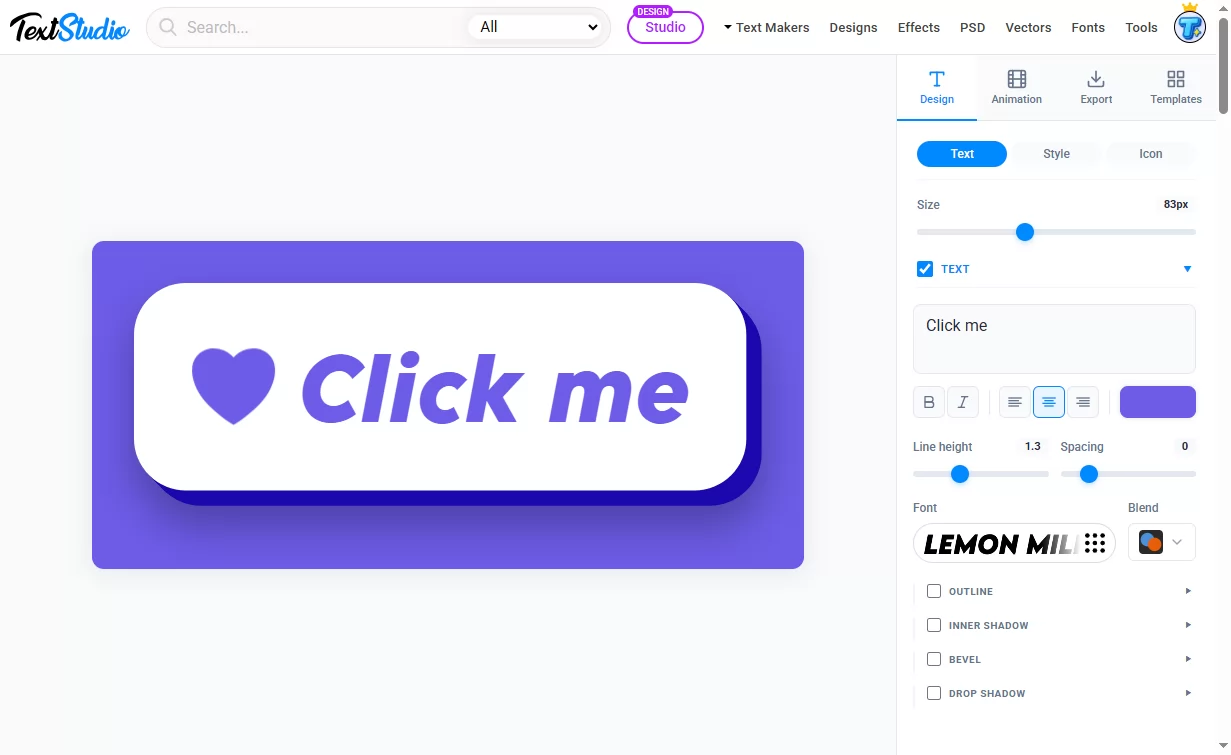
Text is where you type your label and shape it: font, size, color, alignment, line height and letter spacing. There are hundreds of fonts to match any mood, from playful to corporate.
Style is where a button stops looking flat and starts looking real. You get:
- Fill with solid colors or smooth gradients
- Corner radius, from sharp edges to fully rounded pills
- Border and outline for contrast
- Bevel for a genuine 3D, pressable look
- Drop shadow and inner shadow for depth
- Highlight for that glossy, glassy finish
Icon lets you drop a symbol next to your text (a heart, a play triangle, an arrow, a star and many more), so a "Watch now" or "Like" button reads instantly.
Every change shows up in the live preview on the left in real time, so you are always designing what you will actually download.
Making it move
Static buttons are fine. Animated buttons grab attention, and this is where the tool really stands out. Open the Animation tab and pick from dozens of ready-made effects: Bounce, Bounce 3D, Breathe, Drop, Explode, Flip, Flash and more.
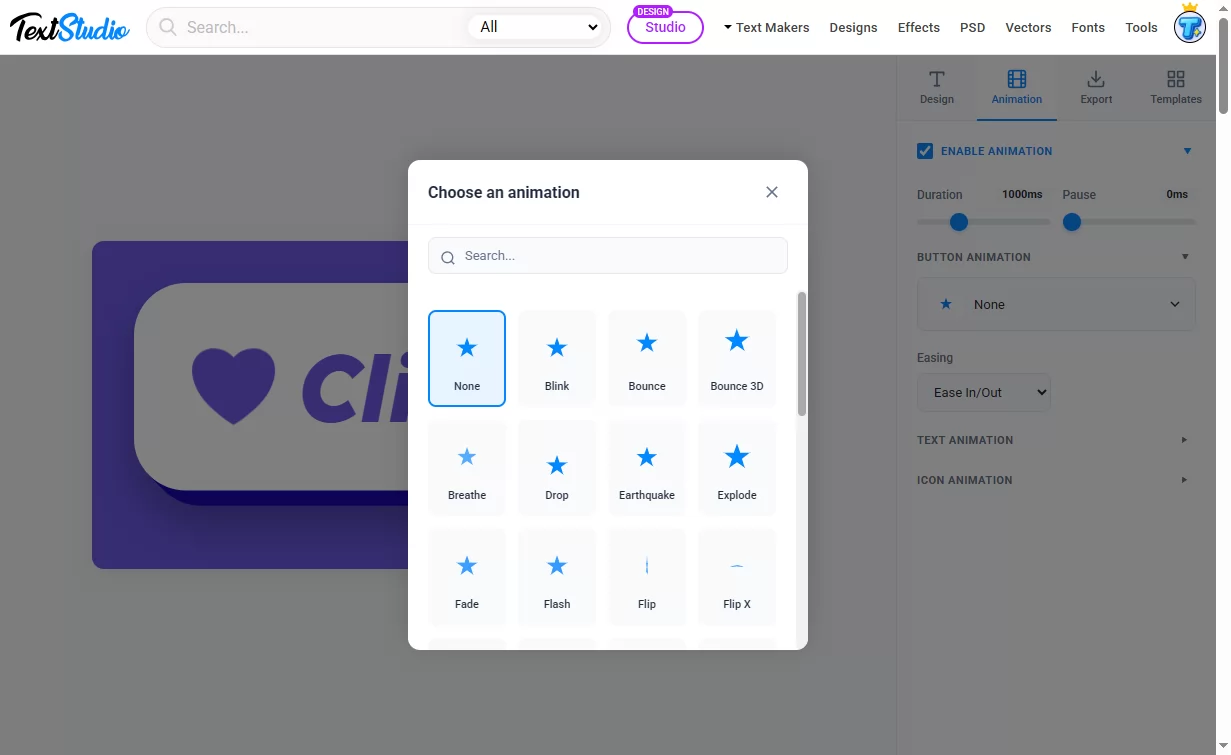
You can animate the whole button, the text and the icon independently, then fine-tune the duration, the pause between loops and the easing curve. A subtle "Breathe" on a subscribe button, or a punchy "Bounce 3D" on a game button, is the kind of detail that makes people click.
Exporting in the right format
When your button looks right, head to the Export tab. You choose the output size (up to very large, high-resolution files) and whether you want a transparent background.
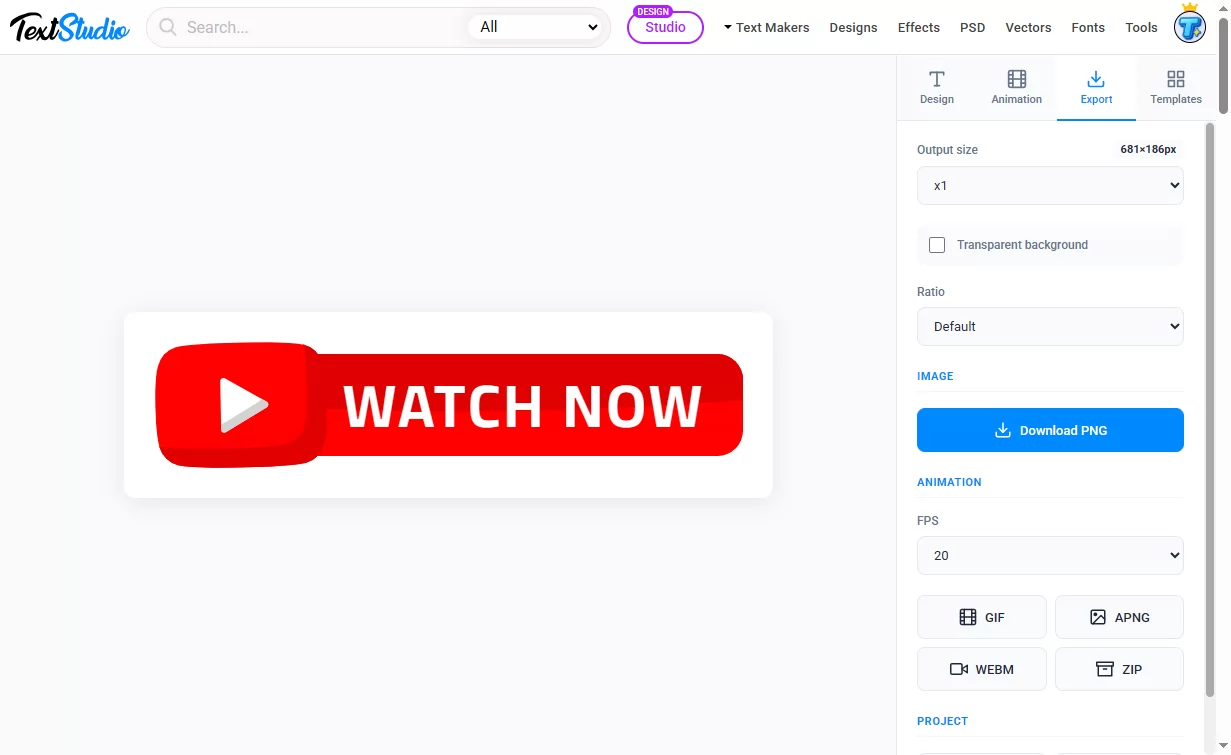
For a still button, download a PNG. It keeps transparency, so it sits cleanly on any background.
For an animated button, you have three options:
- GIF, the universal animated format that works almost everywhere
- APNG, for higher quality animation with full transparency
- WEBM, a lightweight video for the web
You can also export a ZIP of individual frames, or save your project to keep editing later. Set the frame rate (FPS) to control how smooth the animation feels.
Start from a template
You do not have to begin with a blank button. The Templates tab is a searchable library of ready-made designs you can load in one click and tweak.
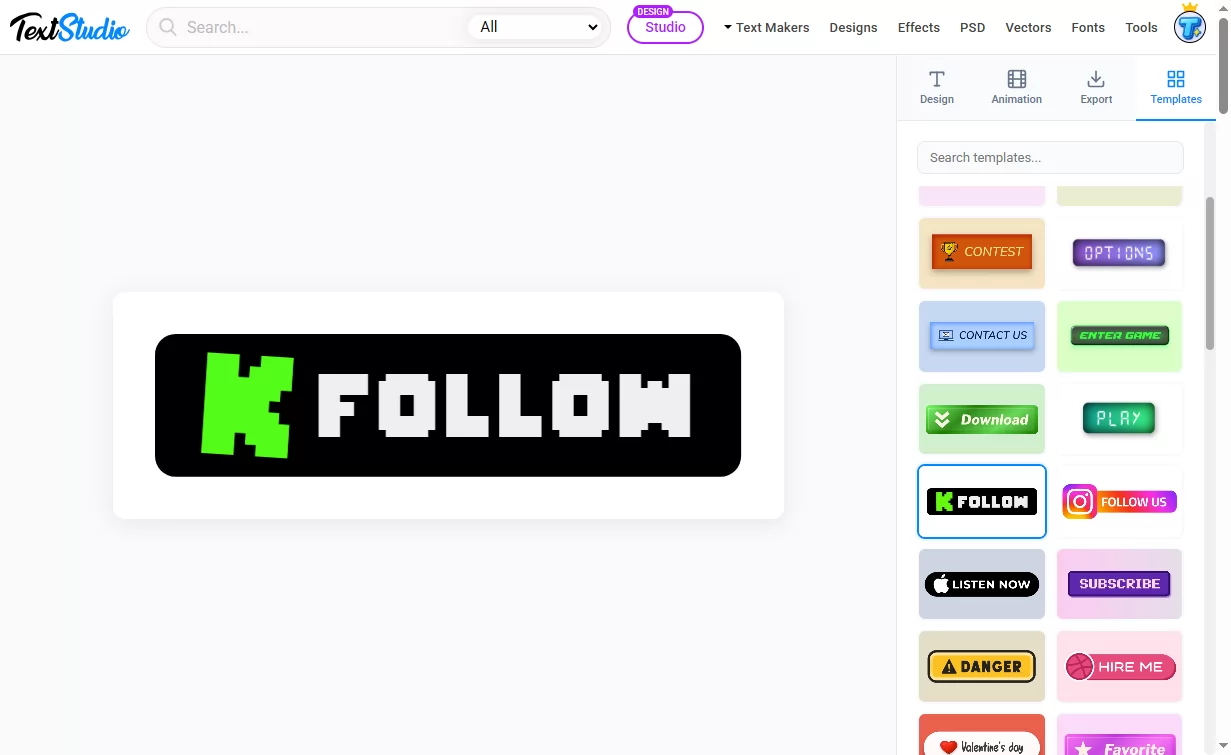
There are buttons for social platforms (subscribe, follow, listen now), for games (play, enter game, options), and for classic calls to action (download, contact us, hire me). Pick one that is close to what you need, change the text and colors, and you have a finished button in seconds.
What you can make with it
A few ideas to show the range:
- A red "Watch now" button for a YouTube thumbnail
- A glossy "Subscribe" button for a stream overlay
- A bright "Download" button with an arrow icon for your app page
- An animated "Play" button for a mobile game menu
- A clean "Buy now" button for a marketplace listing
- A festive, animated button for a seasonal email campaign
Frequently asked questions
Is the Button Generator free? Yes. You can design and export buttons for free, with no account required.
Can I get a transparent background? Yes. Turn on the transparent background option before you export a PNG or APNG, and your button will drop onto any design without an ugly rectangle behind it.
How do I make the button clickable? An image cannot store a link by itself. The click always comes from the page around it. So you add the link where you place the button: in a website builder, insert the PNG and use its link or "add link" option; in Gmail or Outlook on the web, insert the image, select it, then use the link button to point it at your URL. The image is the look, the link lives where you use it.
What can I use the buttons for? Anything visual: videos, streams, emails, games, apps, stores, social posts and mockups. Because you export a standard image, it works in any tool that accepts an image.
Design your first button
Whether you need a single polished call to action or a full set of matching buttons for a project, the Button Generator gets you there without touching a line of code.
👉 Open the Button Generator and design your first button now, it is free.